Astronomie: Parkplätze an der A24 für astronomische Beobachtungen

Gehört zu: Beobachtungsplanung
Siehe auch: Lichtverschmutzung, OpenStreetMap
Benutzt: WordPress-Plugin Google Maps, Fotos von pCloud

Stand: 28.05.2021

Astronomische Beobachtungsplätze an der A24

Ort für Auto und Teleskop

Für astronomische Beobachtungen, speziell für Astrofotografie, muss man wohl die Dunstglocke von Hamburg verlassen, es sei denn, man möchte stundenlang mit teuren “Narrow Band” Filtern belichten.
Wenn ich meine schwere Astro-Ausrüstung schon mal ins Auto einpacke, möchte ich am liebsten zu einem schönen dunklen Platz hinfahren, bei dem ich direkt neben meinem parkenden Auto die Geräte aufbauen kann – Bitte nicht noch 500 m Fußweg durch einen dunklen Wald.

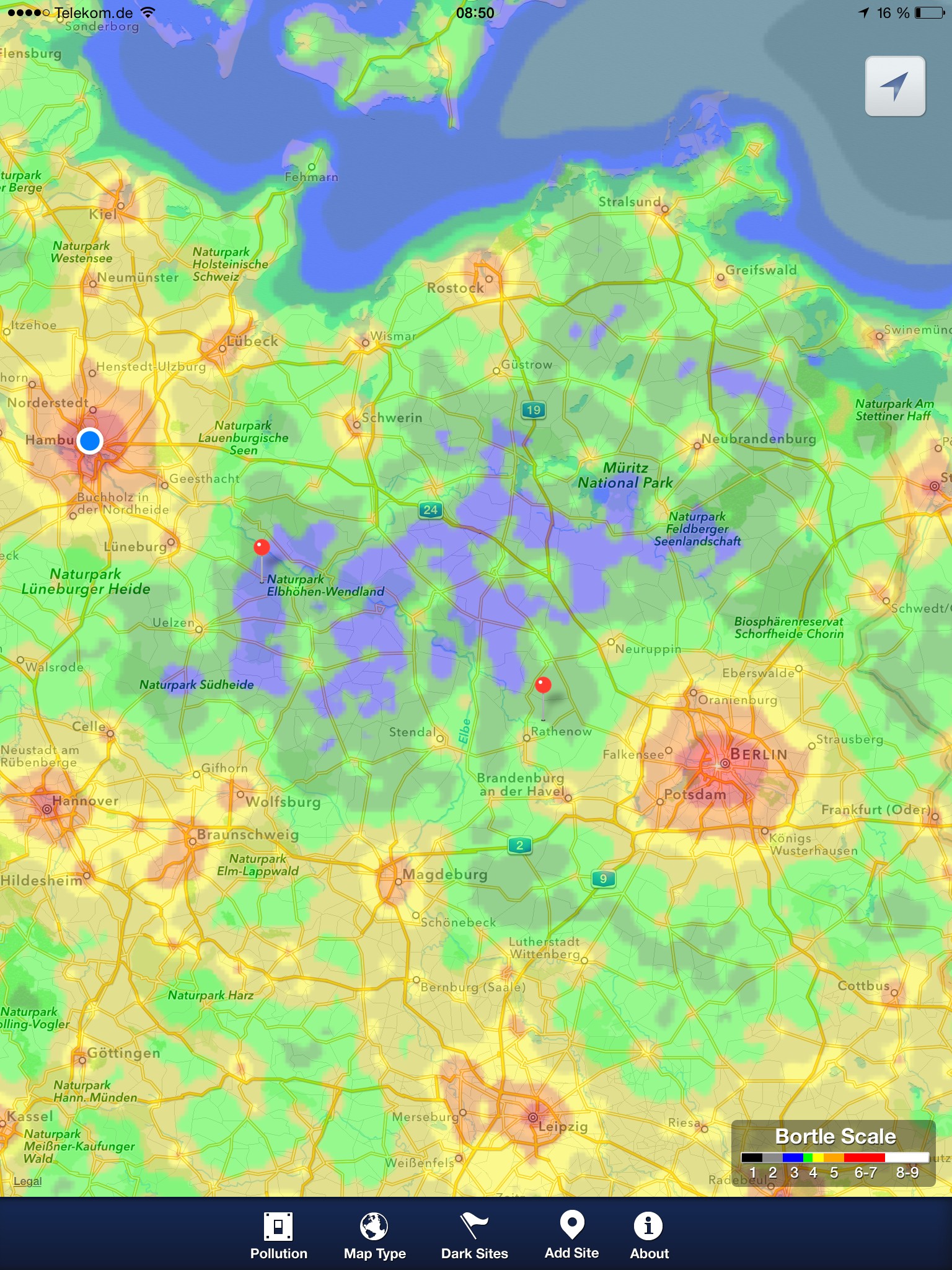
Die Autobahn A24 von Hamburg Richtung Berlin scheint sehr geeignet, weil sie zwischen Sukow und Putliz durch ein Gebiet mit sehr geringer “Light Pollution” führt.

Zum Thema Lichtverschmutzung habe ich einen separaten Artikel.

Projekt “Autobahnparkplätze A24”

Autobahnraststätten und Autobahntankstellen kommen nicht infrage, da dort mit viel hellem Licht zu rechnen ist. Ideal wäre ein alter, “klassischer” Parkplatz ohne beleuchtetes Toilettenhäuschen. Mein erstes Projekt für auswärtige astronomische Beobachtungen ist also “Autobahnparkplätze an der A24”:  (hier wollte ich die Parkplätze in Google Maps darstellen)

  • Hahnenkoppel xhttp://www.google.com/maps?q=53.567692,10.304312
  • Wittenburger Land xhttp://www.google.com/maps?q=53.494514,11.126136
  • Schremheide xhttp://www.google.com/maps?q=53.462037,11.342175
  • Blievensdorf xhttp://www.google.com/maps?q=53.370218,11.651696
  • Putlitz xhttp://www.google.com/maps?q=53.284965,12.072167
  • Dorngrund xhttp://www.google.com/maps?q=53.263569,12.142798

Die Fotos habe ich auf pCloud gestellt:

  • Foto 1: DK_20150724_0010.JPG (Hahnenkoppel Schotterplatz)
  • Foto 2: DK_20150724_0011.JPG (Hahnenkoppel Toilettenhäuschen)
  • Foto 3: DK_20150724_0014.JPG  (Wittenburger Land)
  • Foto 4: DK_20150724_0015.JPG  (Wiitenburger Land Toilettenhäuschen)
  • Foto 5: DK_20150930_06000.JPG (Schremmheide)
  • Foto 6: DK_20150930_06006.JPG (Blievenstorf)
  • Foto 7: DK_20150930_06024.JPG (Putliz)
  • Foto 8: DK_20150930_06058.jpg (Dorngrund Toilettenhäuschen)
  • Foto 9: DK_20150930_06054.JPG (Dorngrund Wiese)

Autobahnparkplatz Hahnenkoppel

Open Street Map: A24 Hahnenkoppel

Foto 1: A24 Parkplatz Hahnenkoppel Schotterplatz (pCloud: DK_20150724_0010.JPG)
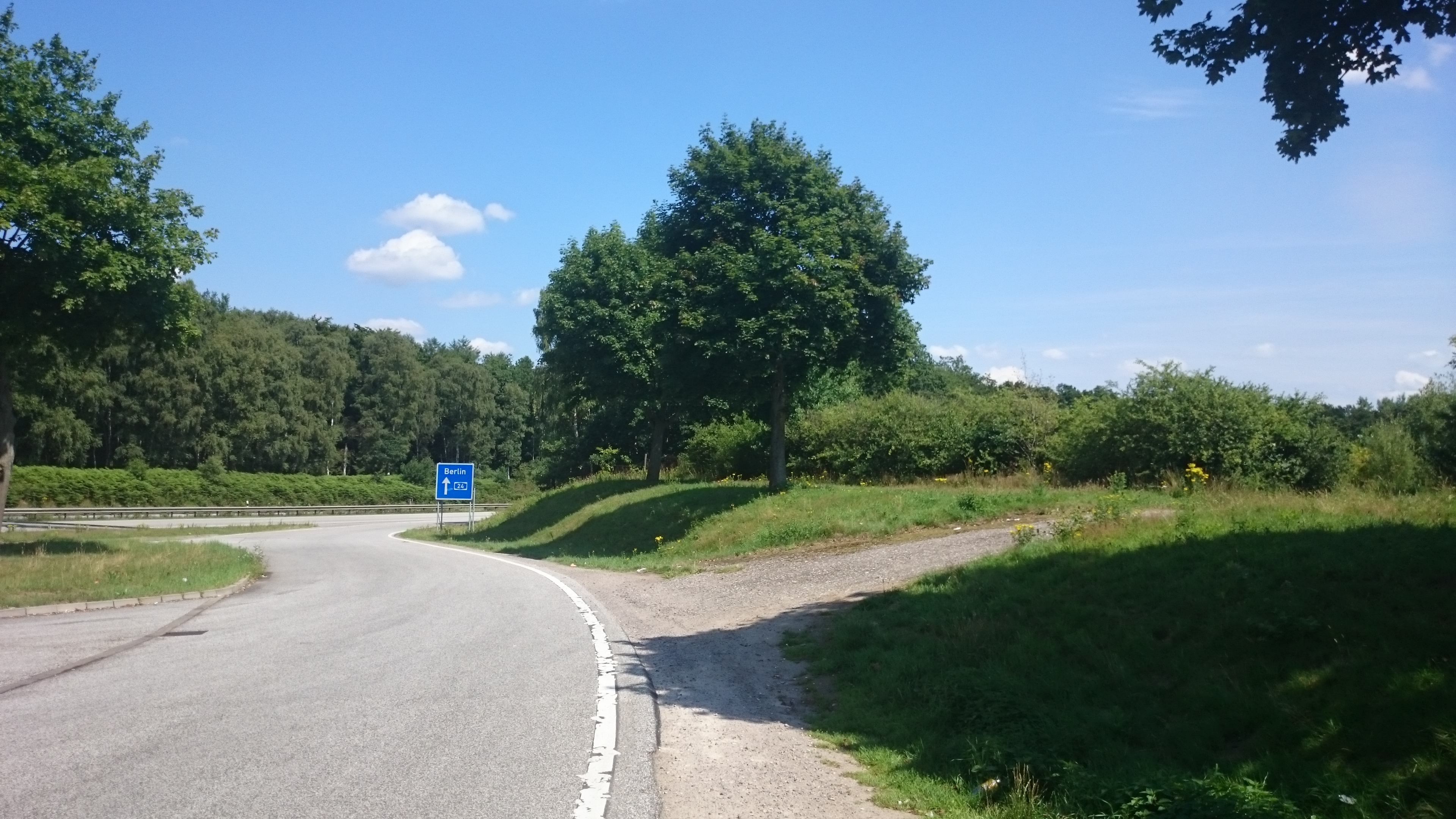
Wenn man die A24 vom Horner Kreisel aus gen Osten fährt, ist der erste Kandidat für Astronomie der Parkplatz “Hahnenkoppel”, kurz vor der Ausfahrt “Witzhave”.

Von meiner Wohnung:   23,9 km  d.h.  26 Minuten ohne Verkehr

GPS: 53°34’03.7″N 10°18’15.5″E       Google Maps: xhttp://www.google.com/maps?q=53.567692,10.304312

Beschreibung:

  • Der Parkplatz ist sehr klein, d.h. schnell sind alle offiziellen Stellplätze belegt. Es gibt einen kleinen “Schotterplatz”, wo man Auto plus Teleskop hinstellen könnte; das ist ganz hinten rechts ein paar Meter abseits vom Asphalt (Foto 1).
  • Sichtfeld: Blick nach Süden recht gut, nur  in gewisser Entfernung einige Bäume
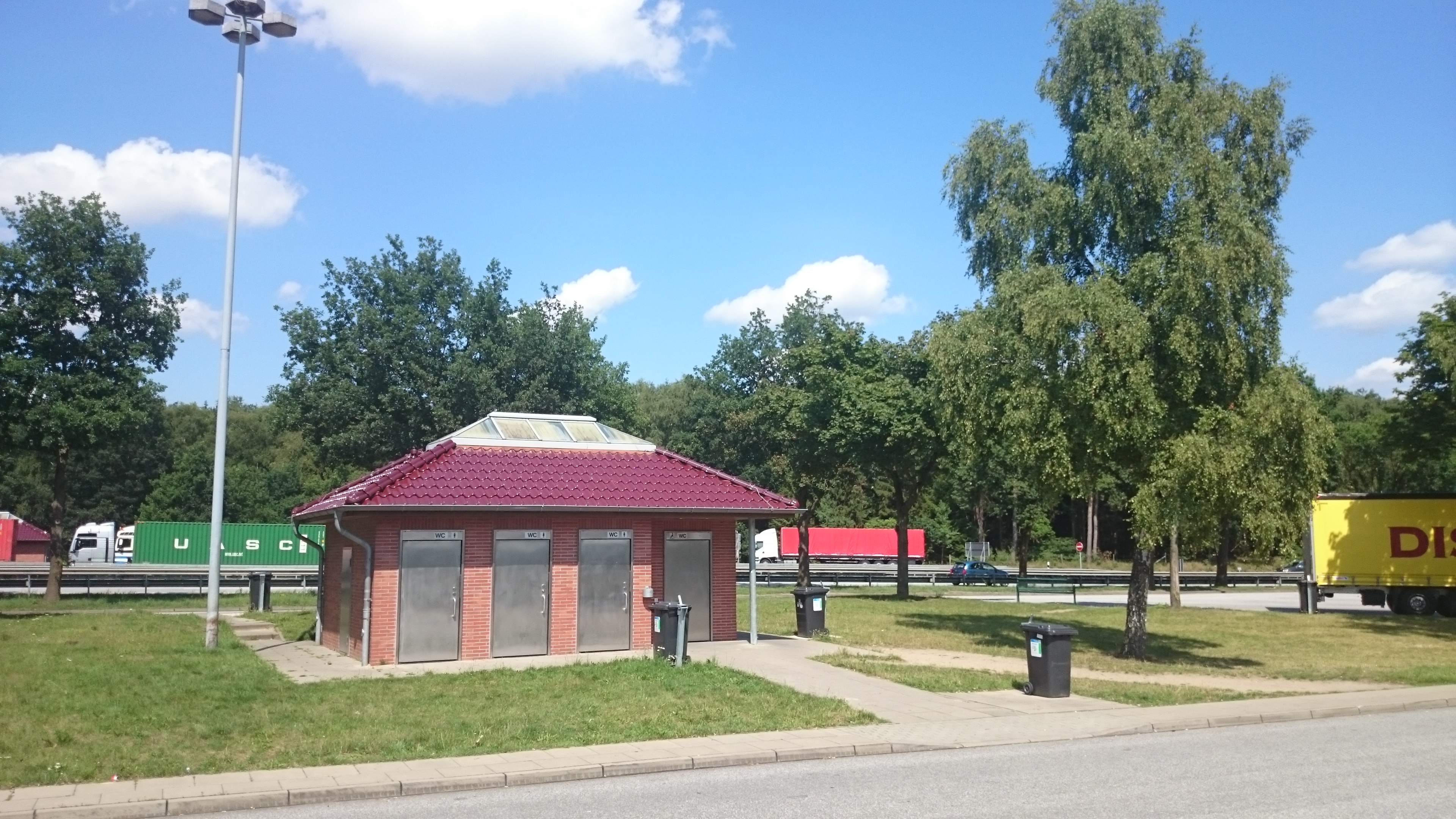
  • Lichtquellen:  Im vorderen Teil des Parkplatzes befindet sich ein Toilettenhäuschen, beleuchtet durch eine hohe Vierer-Lampe (Foto 2)

Foto 2: A24 Parkplatz Hahnenkoppel: Toilettenhäuschen (pCloud: DK_20150724_0011.JPG)
Autobahnparkplatz Wittenburger Land

Open Street Map: A24 Wittenburger Land

Foto 3: A24 Parkplatz Wittenburger Land (pCloud: DK_20150724_0014.JPG)
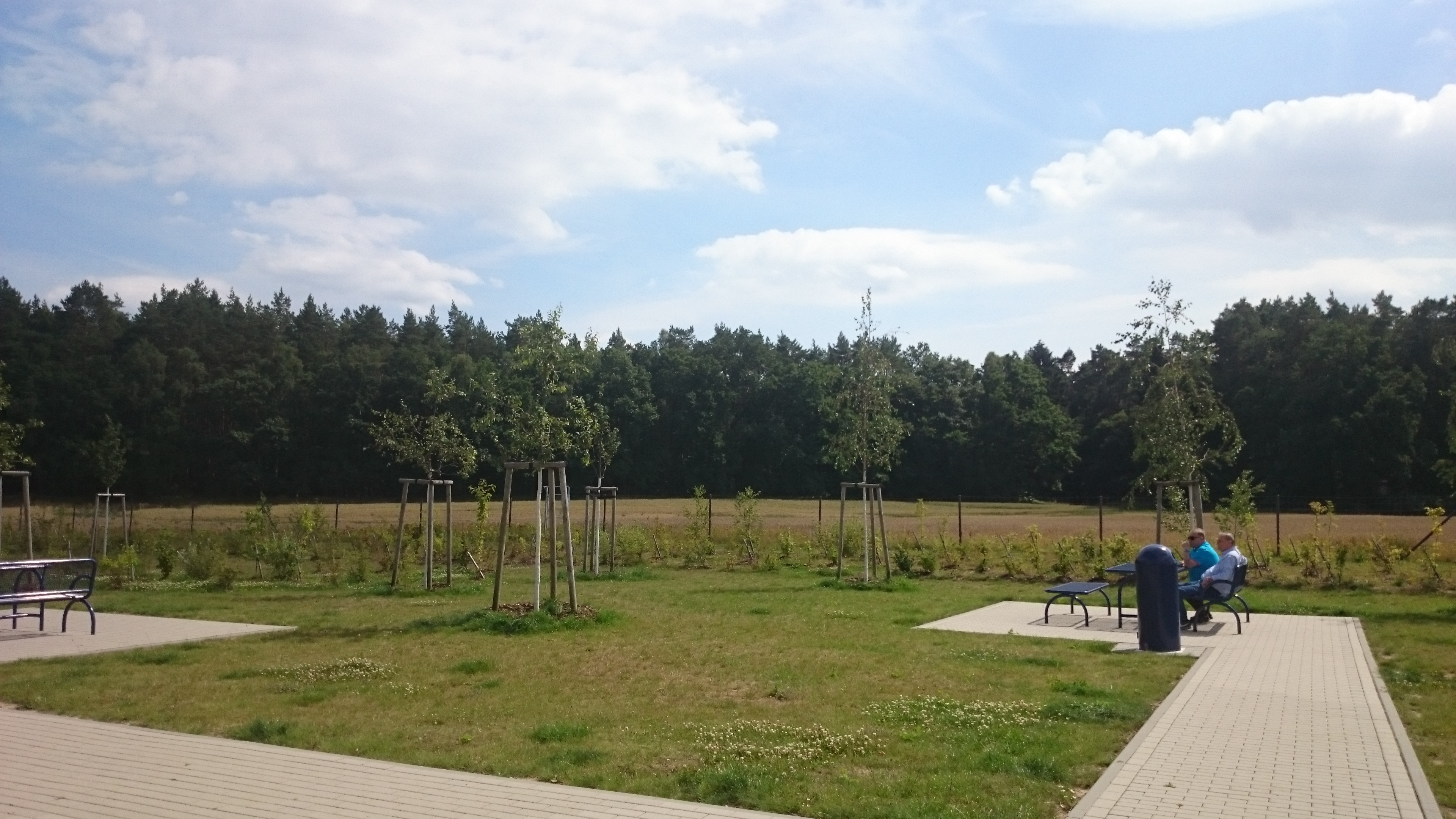
Dies ist ein neu errichteter Autobahnparkplatz (Jan. 2014) kurz hinter der Ausfahrt Wittenburg. Als Transitautobahn durch die DDR durften an der A24 nur wenig Parkplätze gebaut werden.

Von meiner Wohnung:   82,8 km  d.h.   60 Minuten ohne Verkehr

GPS: 53°29’40.2″N, 11°07’34.1″E     Google Maps: xhttp://www.google.com/maps?q=53.494514,11.126136

Beschreibung:

  • Der Parkplatz ist mittelgroß. Es befinden sich mehrere Picknick-Plätze (Tisch und Bänke) in kurzer Distanz, die auch für Astronomie geeignet sind.
  • Sichtfeld nach Süden ist im hinteren Teil des Parkplatzes teilweise durch Bäume in der Nähe eingeschränkt
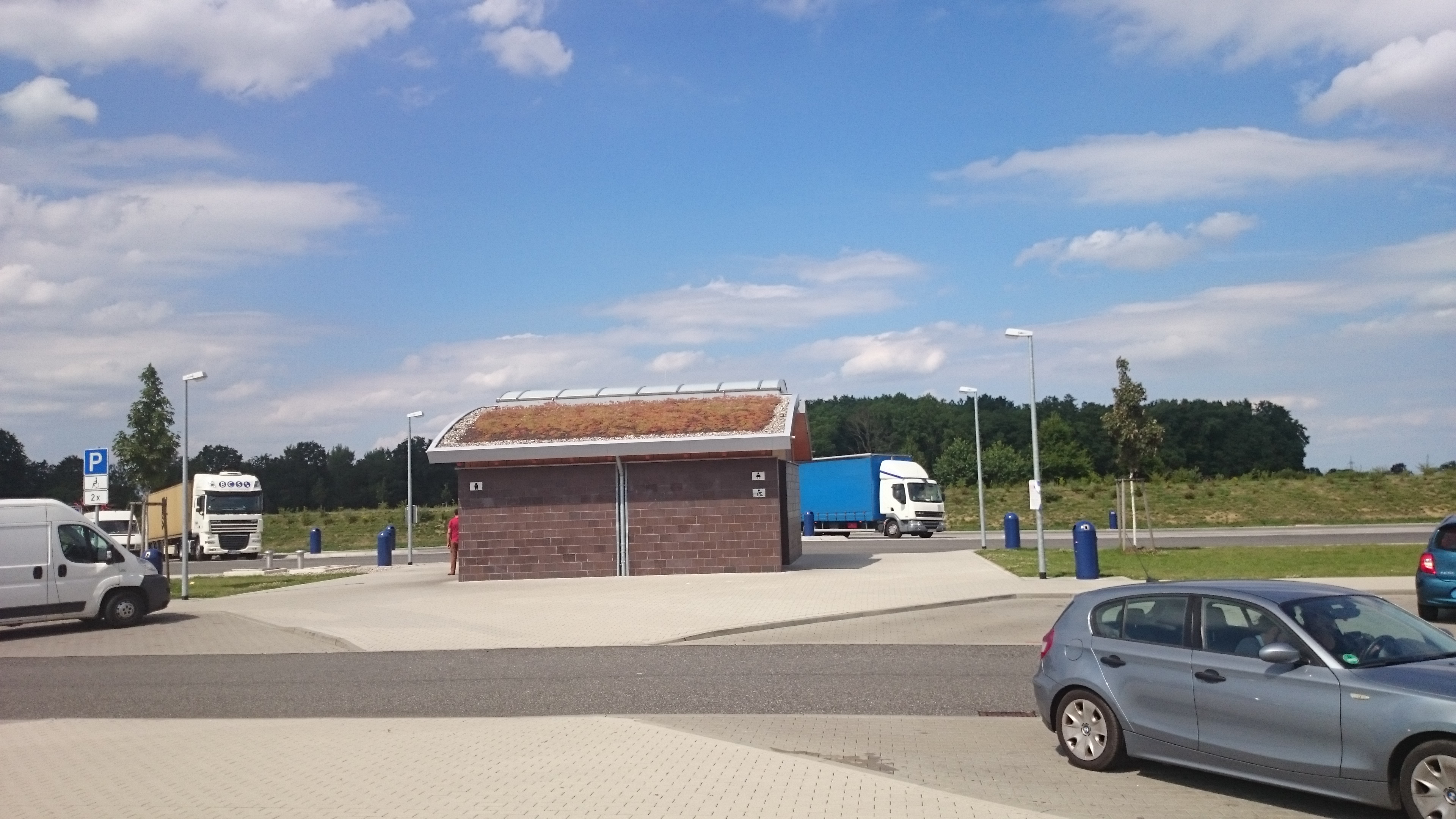
  • Lichtquellen: Im vorderen Teil des Parkplatzes befindet sich ein Toilettenhäuschen, das durch vier nicht so hohe Lampen beleuchtet ist (Foto 4).

Foto 4: A24 Parkplatz Wittenburger Land (pCloud: DK_20150724_0015.JPG)
Autobahnparkplatz Schremmheide

Kurz hinter der Ausfahrt “Hagenow” befindet sich der Parkplatz Schremmheide.

Open Street Map: A24 Schremmheide

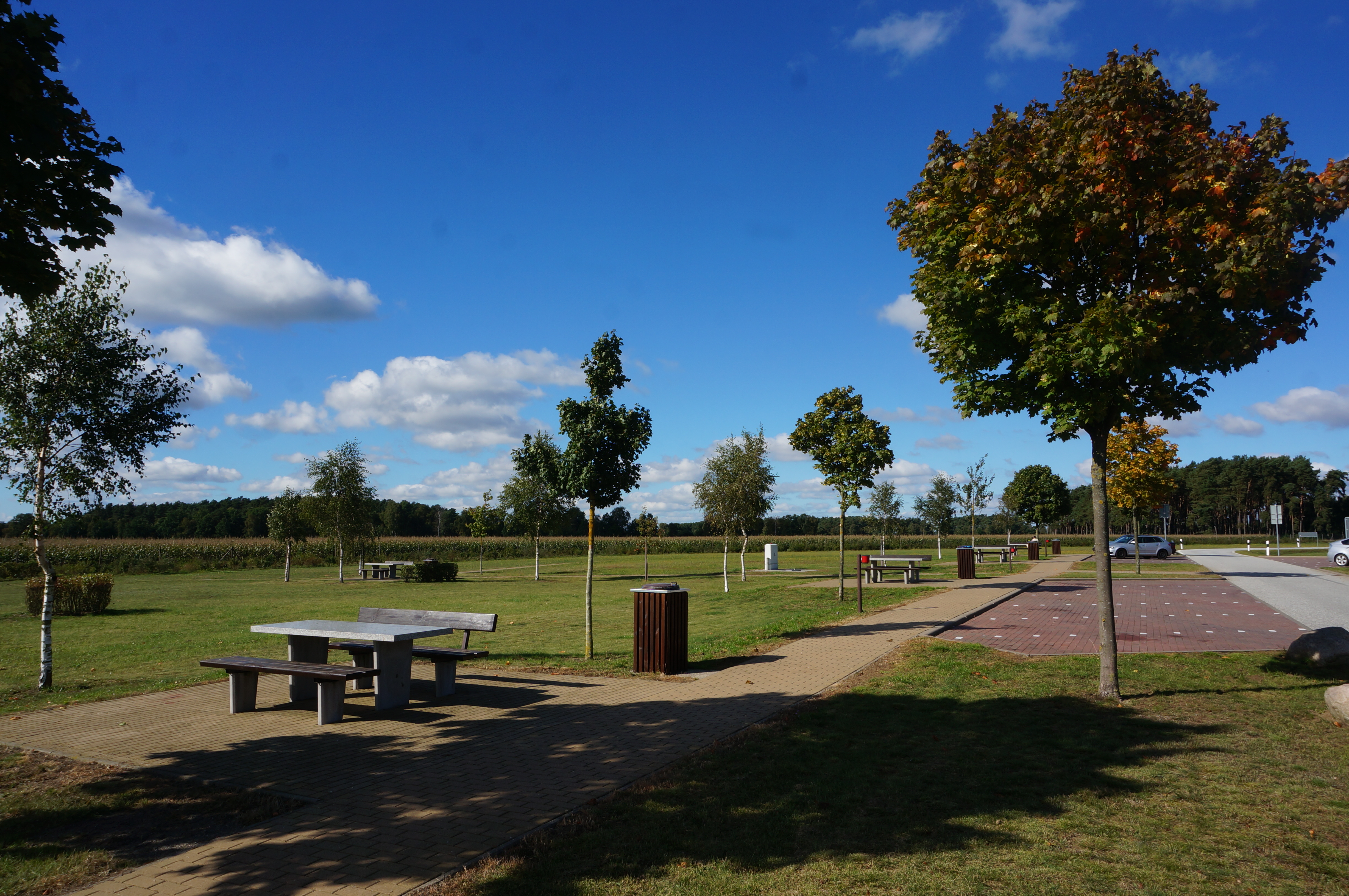
Foto 5: A24 Parkplatz Schremmheide (pCloud: DK_20150930_06000.JPG)
Von meiner Wohnung:  95,1 km   d.h.    1 h  3 min ohne Verkehr

GPS:53°27’43.3″N 11°20’31.8″E   Google Maps: xhttp://www.google.com/maps?q=53.462037,11.342175

Beschreibung:

  • Der Parkplatz ist mittelgroß. Es befinden sich mehrere Picknick-Plätze (Tisch und Bänke) in kurzer Distanz, die auch für Astronomie geeignet sind.
  • Sichtfeld nach Süden ist gut.
  • Lichtquellen: Im vorderen Teil des Parkplatzes befindet sich ein Toilettenhäuschen, das durch vier nicht so hohe Lampen beleuchtet ist.

Autobahnparkplatz Blievenstorf

Open Street Map: A24 Blievenstorf

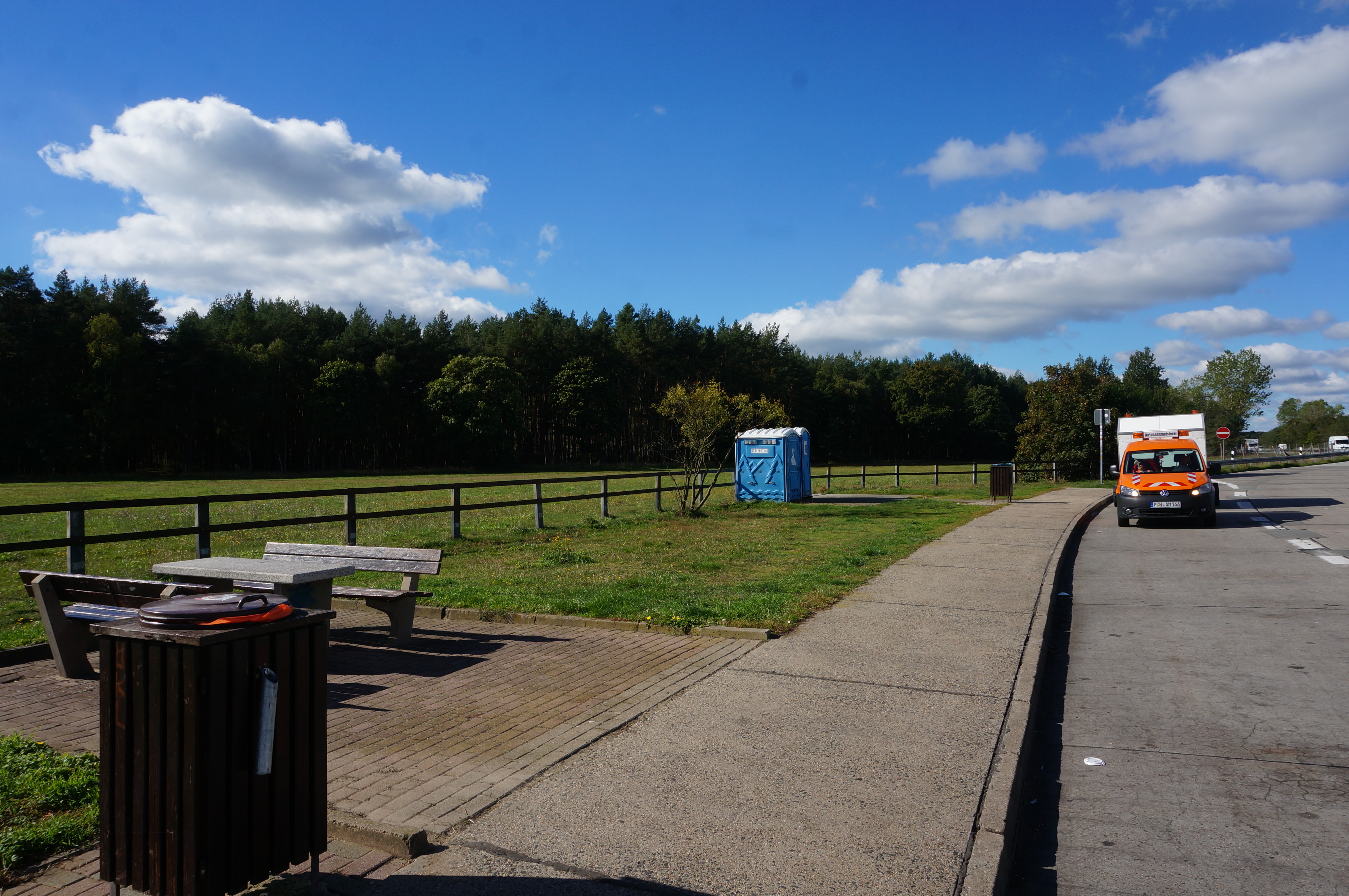
Foto 6: A24 Parkplatz Blievenstorf (pCloud: DK_20150930_06006.JPG)
Von meiner Wohnung:   119 km,    Fahrzeit: 1 h 14 min ohne Verkehr
GPS:  53°22’12.8″N 11°39’03.0″E    Google Maps: xhttp://www.google.com/maps?q=53.370090,11.651696

  • Es ist alter einfacher Parkplatz. Es befinden sich dort einige Picknickplätze (Tisch und Bänke) und man kann direkt daneben parken.
  • Sichtfeld nach Süden gut
  • Lichtquellen:  keine
  • Toilettenhäuschen: Nur ein “Dixi-Klo”

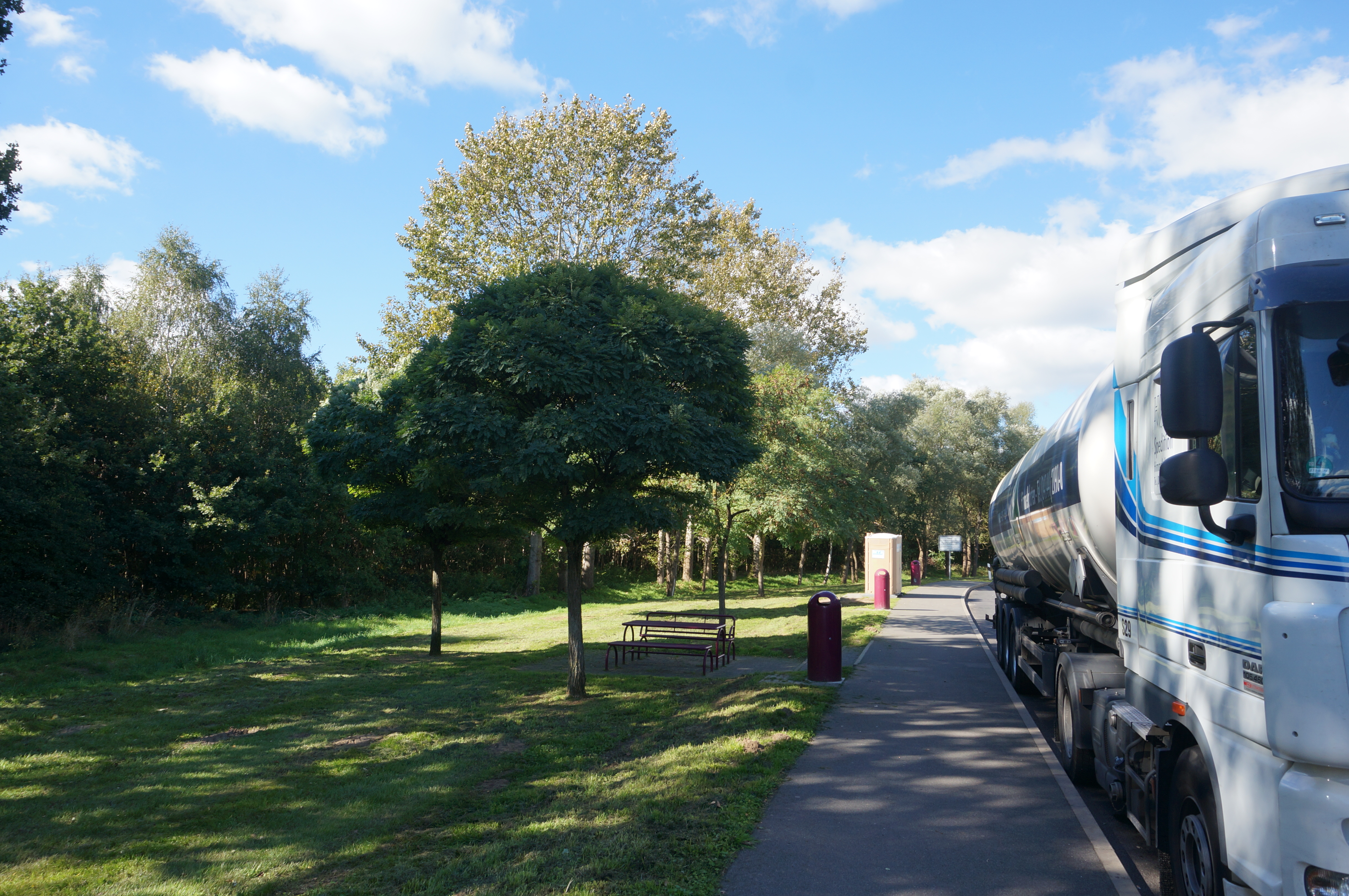
Autobahnparkplatz Putliz

Kurz vor der Ausfahrt “Putliz” befindet sich der alte einfache Parkplatz Putliz.

Open Street Map: A24 Putliz

Foto 7: A24 Parkplatz Putliz (pCloud: DK_20150930_06024.JPG)
Von meiner Wohnung: 149 km      1h 33min  ohne Verkehr

GPS:   53°17’05.9″ N 12°04’19.8″ E        Google Maps:  xhttp://www.google.com/maps?q=53.284464,12.073387

  • Putlitz ist ein einfacher alter kleinerer Parkplatz
  • xhttp://www.google.com/maps?q=53.278643,12.062525
  • Lichtquellen: keine
  • Toilettenhäuschen, nur ein unbeleuchtetes “Dixi”

Autobahnparkplatz Dorngrund

Open Street Map: A24 Dorngrund

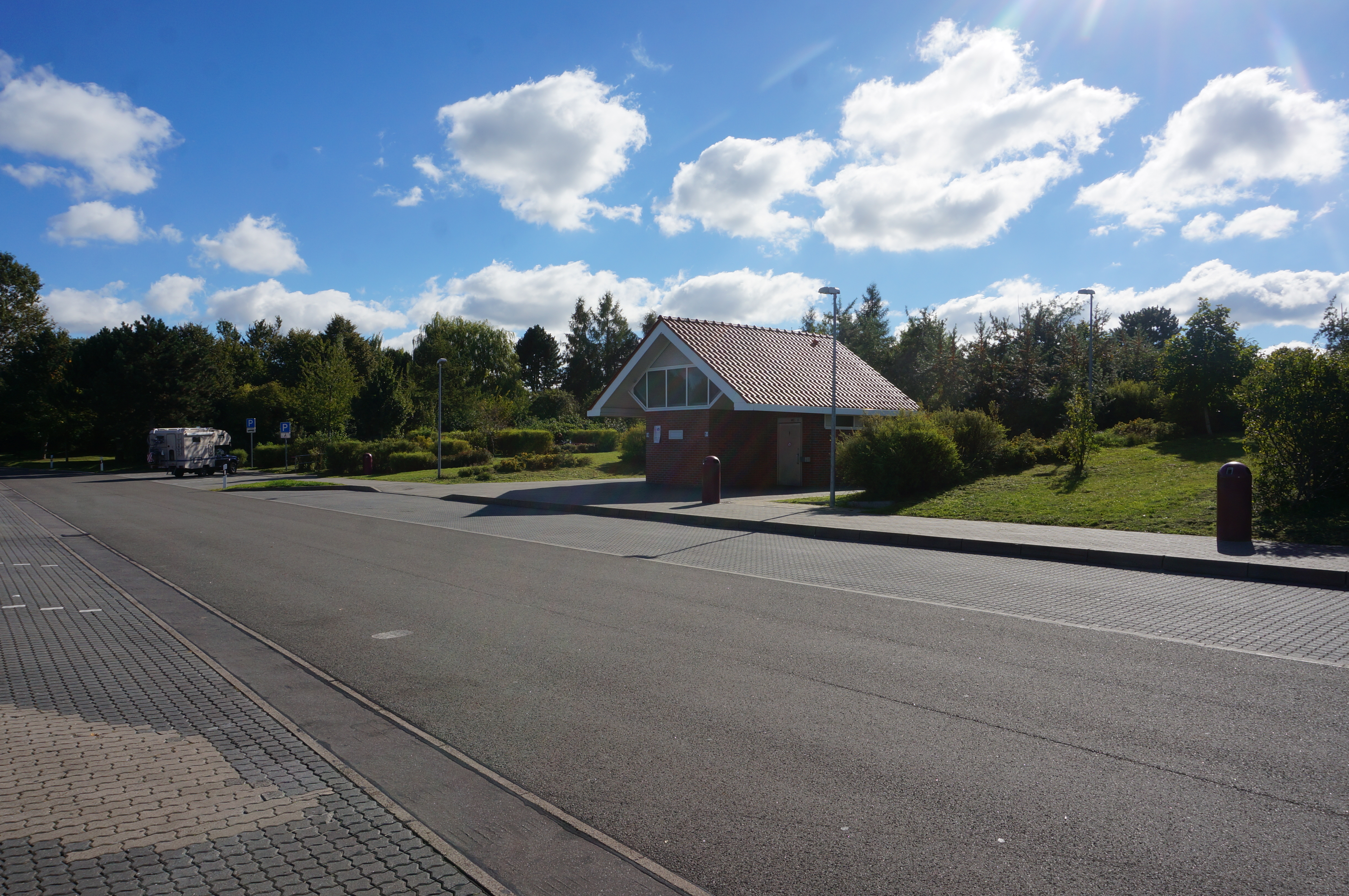
Foto 8: A24 Parkplatz Dorngrund: beleuchtetes Toilettenhäuschen (pCloud: DK_20150930_06058.JPG)
Von meiner Wohnung:  166 km,   1 h 36 min ohne Verkehr

GPS:   53.2635 12.1427       Google Maps: xhttp://www.google.com/maps?q=53.263569,12.142798

  • Moderner, mittelgroßer Parkplatz
  • Sichtfeld direkt nach Süden etwas eingeschränkt (Südost und Südwest geht)
  • Lichtquellen: vier normale Lampen um das Toilettenhäuschen
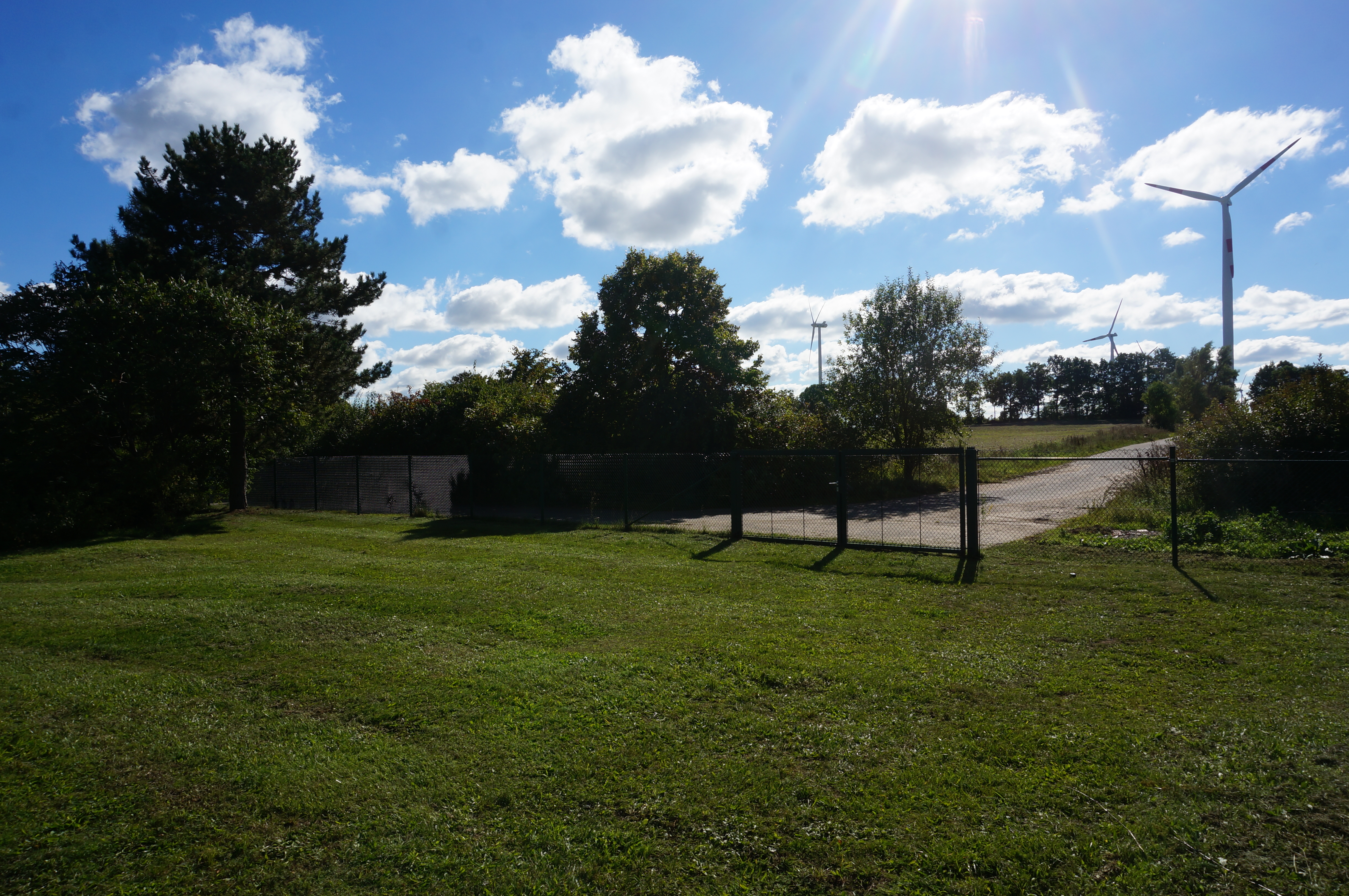
  • Toilettenhaus: modern, dahinter ein Wiesenbereich mit Windrädern

Foto 9: A24 Parkplatz Dornengrund: Wiese hinter dem Toilettenhäuschen (pCloud: DK_20150930_06054.JPG)
Astrofotografie: Lichtverschmutzung

Gehört zu: Beobachtungsorte
Siehe auch: Astrofotografie: Aufnahmeverfahren (Image Capturing), Bortle Scale, SQM Sky Quality Meter, Google Fotos
Benutzt: Foto von pCloud

Stand: 06.07.2021

Lichtverschmutzung – Light Pollution

Nachts wird der Himmel bei uns in Deutschland nicht mehr richtig dunkel. Der Himmel wird nachts von vielen künstlichen Lichtquellen aufgehellt. Damit kann man viele interessante Eindrücke vom nächtlichen Sternenhimmel nicht mehr genießen.
Beispielsweise kann man an vielen Orten die Milchstraße nicht mehr gut sehen.

Man nennt dieses Phänomen “Lichtverschmutzung” und versucht es auf der einen Seite objektiv zu messen und auf der anderen Seite die wenigen verbliebenen Gegenden mit natürlich dunklem Nachthimmel besonders hervorzuheben z.B. als “Dark Sky” etc.

Bildbearbeitung bei Lichtverschmutzung

Für die Astrofotografie ist nichts besser als ein richtig dunkler Himmel. Aber trotzdem wird der Amateur-Astronom öfter an dem Platz, an dem er wohnt, fotografieren wollen – einfach weil der Aufwand dafür viel geringer ist, als alles Equipment ins Auto zupacken und eine Stunde zu fahren, um endlich einen etwas dunkleren Ort zu erreichen.

Um schöne Astrofotos auch von Orten mit höherer Lichtverschmutzung zu schiessen, müssen wir lange belichten (gesamte Integrationszeit) und das gestackte Foto dann mit einem geschickten “Post-Processing” zu bearbeiten.

Links zur Lichtverschmutzung

Aktuell: https://www.lightpollutionmap.info/

Globe at Night: http://www.globeatnight.org/

Atlas der Lichtverschmutzung NEU 2016: http://www.ipernity.com/doc/1072793/43332216 http://cires.colorado.edu/artificial-sky

Samir Kharusi: Measuring SkyFog

Dark Sky Finder: http://darksitefinder.com/maps/world.html

Messung der Himmelshelligkeit – Lichtverschmutzung

Messung der Himmelshelligkeit mit dem “Sky Qualtity Meter” von Unihedron

Dazu habe ich einen separaten Artikel geschrieben: SQM Sky Quality Meter

Lichtverschmutzung: Messverfahren mit iPhone-App

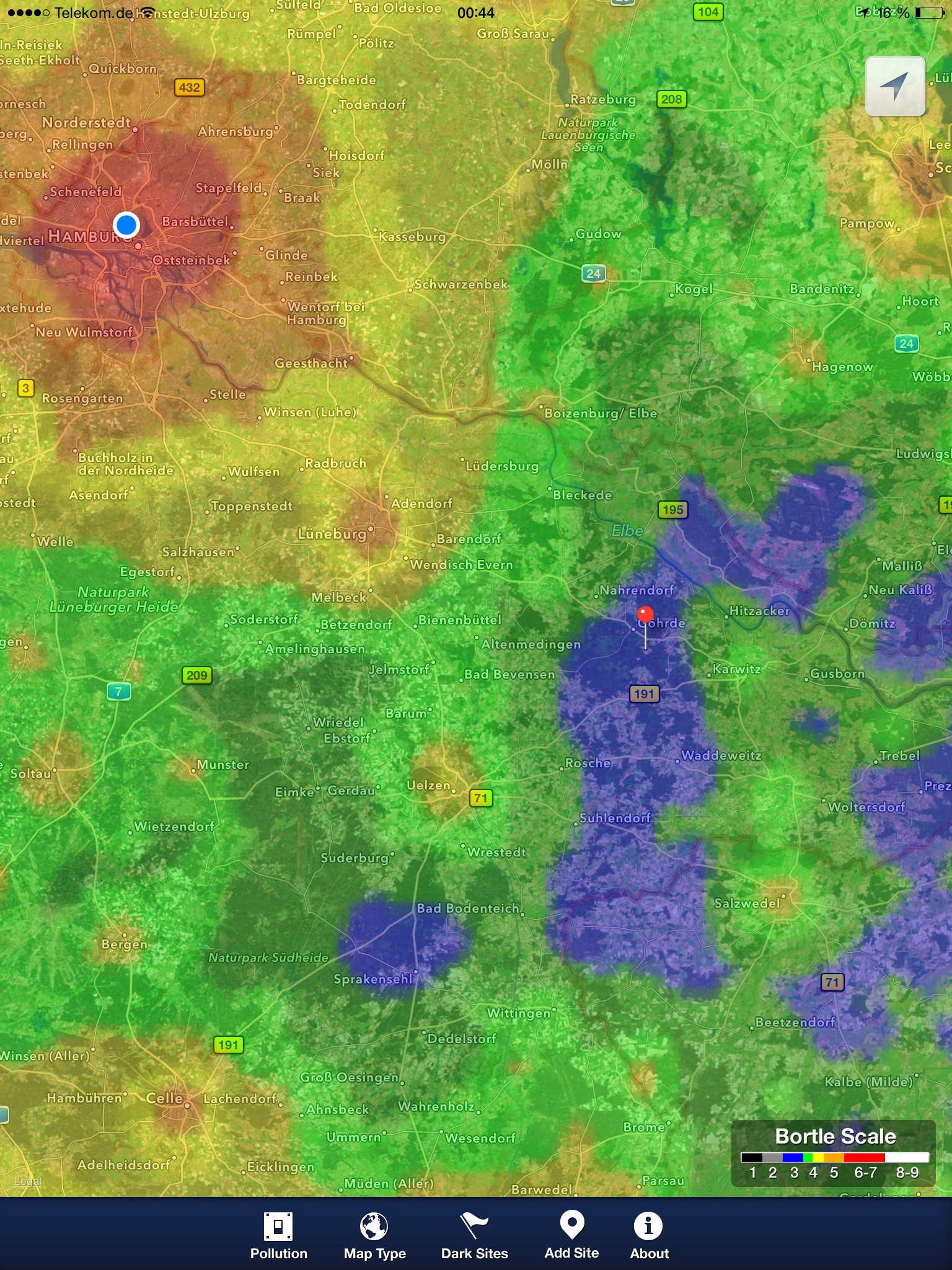
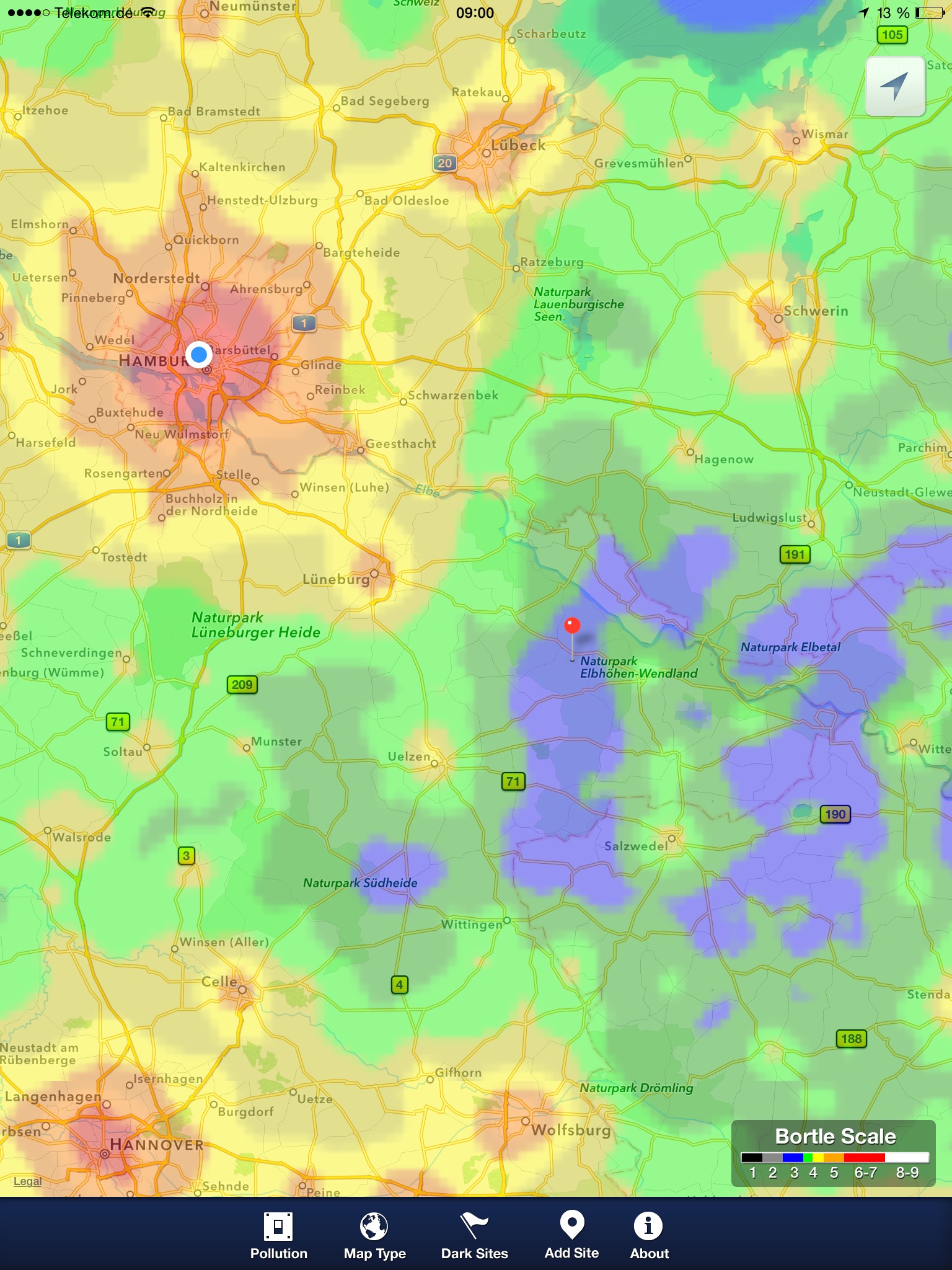
Die iPhone-App “Dark Sky” (james@skidmoreapps.com http://finddarkskies.com/ ) zeigt die Lichtverschmutzung mit Farbcodes als Überlagerung auf den weltweiten Landkarten von Google. Dabei kann diese App Farbcodes für Himmelshelligkeit verwenden, die der Bortle-Skala zugeordnet sind: 1=schwarz, 2=grau, 3=blau, 4= grün/gelb, 5=orange, 6-7=rot, 8-9=weiss

Mit dem iPhone 5S und der App “Dark Sky Meter” habe ich in Hamburg Eimsbüttel am 20.9.2015 gegen 22:00 UTC bei klarem Himmel folgendes mit dieser App gemessen:

  • SQM 16.88 mag/arcsec² (4.49 mag) — Wolkendecke
  • SQM 18,77 mag/arcsec² (5,44 mag)     “Bortle 7”
  • SQM 19,16 mag/arcsec² (5,63 mag)     “Bortle 6”
  • SQM 19,18 mag/arcsec² (5,65 mag)     “Bortle 6”
  • SQM 18,12 mag/arcsec² (5,12 mag) — leichte Wolken kamen auf

In Namibia war der Himmel sehr schön dunkel:

  • SQM 21,95 mag/arcsec² Namibia 5 Uhr Morgens  “Bortle 1”

Abbildung 1: Beispiele der iPhone-App “Dark Sky” (pCloud: IMG_1019.jpg) SQM App Hannover – Berlin – Leipzig

Abbildung 2: SQM App auf iPad: Hamburg und der Osten (pCloud: IMG_1018.jpg)

SQM App auf iPad: Hamburg und der Osten

Abbildung 3: Lichtverschmutzung: Hamburg und Berlin (pCloud: IMG_1020.jpg)

SQM Bortle Scale iPad App: Hamburg

Landkarten der Lichtverschmutzung

http://www.jshine.net/astronomy/dark_sky/ (Jonathan Tomshine)

https://djlorenz.github.io/astronomy/lp2006/ (David Lorenz 2006)

http://www.cleardarksky.com/csk/ (Attila Danko)

http://darksitefinder.com/links.html (Kevin Palmer)

International Dark-Sky Association (IDA)

Die IDA wurde 1988 von David Crawford und Tim Hunter in Tucson, AZ gegründet: http://www.darksky.org/

International Dark Sky Reserves and Parks:

  • West-Havelland – “Reserve” Silver
  • Biosphärenreservat Rhön – “Reserve” Silver
  • De Boschplaat (Terschelling) – “Park” Silver
  • Eiffel – “Park” Silver provisionel
  • Exmoor National Park (Devon/Somerset) – “Reserve” Silver
  • NamibRand Nature Reserve: “Reserve” Gold – http://www.namibrand.com/
  • Google Maps: http://www.google.com/maps?q=-25.004978,15.995880
  • ….

Zum Vergleich: Tivoli, Namibia: http://www.google.com/maps?q=-23.4608745,18.0157435,17

Die Bortle-Skala

Die Messung der Himmelshelligkeit kann mit einem SQM Sky Quality Meter erfolgen.

Die Bortle-Skala: https://en.wikipedia.org/wiki/Bortle_scale

Auf der sog. Bortle Scale ist die Stufe 1 (schwarz).
Bortle 1 bedeutet:

  • Excellent dark site
  • SQM 21,70 – 22,00
  • NELM 7.6 – 8.0 (Nacked-Eye Limiting Magnitude)
  • Description
    • Airglow is readily visible
    • Clouds illuminated near horizon, dark overhead.
    • The Scorpius and Sagittarius regions of the Milky Way cast obvious shadows
    • M33 (Triangulum Galaxy 5,7 mag) is a direct vision nacked eye object
    • Zodiacal light is visible and colourfull
    • Nearer surroundings vaguely visible

Auf der sog. Bortle Scale ist die Stufe 2 (grau).
Bortle 2 bedeutet:

  • Typically truly dark site
  • SQM 21,52 – 21,70
  • NELM 7.1 – 7.5 (Nacked-Eye Limiting Magnitude)
  • Description
    • Airglow weakly visible near horizon
    • Some light pollution evident at the horizon,
    • Clouds illuminated near horizon, dark overhead.
    • Milky Way still appears complex
    • M15, M4, M5, and M22 distinct nacked-eye objects; M33 (Triangulum Galaxy 5,7 mag) easily visible with averted vision
    • Zodiacal light striking in spring and autumn, color still visible
    • Nearer surroundings vaguely visible

Auf der sog. Bortle Scale ist die Stufe 3 (blau).
Bortle 3 bedeutet:

  • Rural Sky
  • SQM 21,20 – 21,48
  • NELM 6.6 – 7.0 (Nacked-Eye Limiting Magnitude)
  • Description
    • Some light pollution evident at the horizon,
    • Clouds illuminated near horizon, dark overhead.
    • Milky Way still appears complex
    • M15, M4, M5, and M22 distinct nacked-eye objects; M33 easily visible with averted vision
    • Zodiacal light striking in spring and autumn, color still visible
    • Nearer surroundings vaguely visible

Auf der Bortle Scale ist die Stufe 4 (green/yellow)
Bortle 4 bedeutet:

  • “Rural / Suburban Transition”
  • SQM 20,46 – 21,10
  • NELM 6.1 – 6.5 (Nacked-Eye Limiting Magnitude)
  • Description
    • Light pollution domes visible in various directions over the horizon
    • Clouds illuminated in the directions of the light sources, but still dark overhead
    • Milky Way above the horizon still impressive, but lacks most of the fine details
    • M33 a difficult averted vision object – only visible when higher than 55°
    • Zodiacal light is still visible, but not even halfway extending to the zenith at dusk or dawn
    • Surroundings clearly visible, even at a distance

Auf der Bortle Scale ist die Stufe 5 (orange)
Bortle 5 bedeutet:

  • “Suburban Sky”
  • SQM 19,40 – 20,24
  • NELM 5.6 – 6.0 (Nacked-Eye Limiting Magnitude)
  • Description
    • Light sources visible in most, if not all, directions
    • Clouds are noticeably brighter than the sky
    • Milky Way is very weak or invisible near the horizon and look washed-out overhead
    • (M33 No)
    • Only hints of the Zodiacal light are seen on the best nights
    • (Surroundings clearly visible, even at a distance)

Auf der Bortle Scale ist die Stufe 6 (rot)
Bortle 6 bedeutet:

  • “Bright Suburban Sky”
  • SQM: 18,60 – 19,20
  • NELM: 5.1 – 5.5
  • Description:
    • light pollution makes the sky within 35° of the horizon glow grayish white
    • clouds anywhere in the sky appear fairly bright
    • the Milky Way is only visible near the zenith
    • M33 is not visible, M31 is modestly apparent
    • the zodiacal light is invisible
    • surroundings are easily visible

Auf der Bortle Scale ist die Stufe 7 (auch rot)
Bortle 7 bedeutet:

  • “Suburban/urban transition”
  • SQM: 18,18 – 18,50
  • NELM: 4.6 – 5.0
  • Description
    • strong light sources are evident in all directions
    • clouds are brightly lit
    • the Milky Way is nearly or totally invisible

Auf der Bortle Scale ist die Stufe 8
Bortle 8 bedeutet:

  • “City Sky”
  • SQM: 18,00
  • NELM: 4,3

Dark Sky in Deutschland

Dunkler Himmel in:

  • xhttp://www.google.com/maps?q=53.116746,10.902968-
  • xhttp://maps.google.com/maps?q=52.71211,12.47787-
  • xhttp://maps.google.com/maps?q=52.68550,12.2957-
  • xhttp://maps.google.com/maps?q=52.69383,12.23078-
  • xhttp://maps.google.com/maps?q=52.75217,12.27217-
  • xhttp://maps.google.com/maps?q=52.81390,12.26340-

Die Autobahn A24 von Hamburg Richtung Berlin scheint sehr geeignet, weil sie zwischen Sukow und Putliz durch ein Gebiet mit sehr geringer “Light Pollution” (blau = Bortle 3) führt. An der A24 habe ich Autobahnparkplätze in Augenschein genommen….

Physikalische Größen

Die physikalischen Einheiten und spezielles zur Messung der Lichtstärke habe ich in einem separaten Artikel behandelt.


Computer: Android 4.4 KitKat External SD Card not Writable – Flashing Android

Gehört zu: Android
Siehe auch: Speicher, Root, SmartPhone

Android 4.4 KitKat: External SD Card not writable

One reason why a love Android is because you easily can expand memory by a large external SD Card (and by USB devices….).

With Android 4.4 “KitKat” Google has (tacitly) decided to de-value this feature by making the “external” SD card only readable by all applications, but writable only in a very restrictive way i.e. temporarily for single applications but not for multiple apps to share storage between them. Google thinks this kind of “sharing” should only be done by cloud services and thus requires permanent internet access, whereever you are in this world…

Test: Use “Ghost Commander” and try to copy files from “/storage/sdcard” (internal storage) to “/storage/sdcard1” (external SD card)……

The easy way: Android 5 Lollipop

I decided to upgrade my Android 4.4 to Android 5 (Lollipop).

In Lollipop Google has opened again write acces to the external SD card, but you must in some way “allow” each App, what directories of the SD card should be writable for this application.

  • Ghost Commander:  not successful on first attempt
  • File Commender:      successful with Lollipop
  • ES Datei Explorer:     successfull with lollipop (after authorizing SD card root)
  • X-plore:                   successfull with lollipop (after authorizing SD card root)

Possible Fixes

There a some Apps around that could fix this “Google Feature”, but they need a rooted Android.

So I am an now looking how to root my Sony Xperia Z1 Compact.

My Build No. is  14.4.A.0.157   (the “Kernel”, the “ROM”)

Rooting is possible only with Build 14.4.A.0.108   -> Have to flash the kernel first (with “FlashTool”)

First Steps

Developper Mode: Settings -> About -> Build Number  —- Tap 7 times on “Build Number” —> Now you are a “Developer”

USB Debugging: Once you are “Developer” you can see the item “Developer Options” under “Settings -> System”. Check “USB Debugging” and authorize it….

FlashTool for Sony Xperia

Für mein SmartPhone Sony Xperia gibt es: http://www.chip.de/downloads/Xperia-Flash-Tool_65533558.html

Install the FlashTool on the Windows PC.

Connect the Sony Xperia via USB to the Windows PC   —- with “USB Debugging ON”

FlashTool for Samsung Galaxy S3 mini

Das gute alte S3 mini hat Android 4.1.2 und sollte modernisiert werden…

Als erstes benötigt man die Odin-Software, die für das flashen von Samsung-Geräten erforderlichist: https://odindownload.com/download/

Voraussetzung:

  1. Enable USB Debugging on your Android device. Navigate to Settings > Developers options
  2. Odin installieren auf dem Windows-Computer
  3. Ggf. Samsung USB-Treiber auf dem Windows-Computer installieren
  4. Das gewünschte Anmdroid-Image (“ROM”) für das SmartPhone auf dem Windows-Computer herunter laden.
  5. Das Android-Image mit Odin im Download-Modus des Smatphones aufspielen

Was macht Odin

MIt dem Odin-Tool von Samsung kann man Firmware, alternative Betriebssysteme oder Apps auf das Smartphone aufspielen.

Odin kann verschiedene Bereiche bearbeiten:

  • CSC = Consumer Software Custumization
  • AP = Anwendungsprozessor (=PDA)
  • PIT = Partition Information Table
  • CP = Core Prozessor (=Modem)
  • BL = Boot Loader

Bei einem alternativen System-Image muss man alle diese Optionen zusammen auswählen.

Das SmartPhone selber muss dabei in einem von zwei besonderen zuständen sein:

  • Download Mode: Power off the device then press and hold “Power button, Home button and Volume down button” together for about 6 – 10 seconds
  • Recovery Mode: Power off the device then press and hold “Power button, Home button and Volume down button” together

Flashen mit Odin

  1. Odin starten als Admin
  2. Smartphone ausschalten, USB-Kabel ggf. entfernen
  3. Samsung Smartphone anschalten im “Download Mode” Power off the device then press and hold “Power button, Home button and Volume down button” together for about 6 – 10 seconds

Google Apps

Die normalerweise vorinstallierten Google Appsherunterladen: http://opengapps.org

Das Samsung S3 mini benötigt:

  • ARM (nicht ARM64)
  • Android 5.1
  • Variante: pico

Was ihr braucht:

-Recovery (Am besten eignet sich die TWRP-Recovery) novafusion.pl/downloads/
-Gapps (Das sind die Google Apps zB. Play Store, Gmail…) opengapps.org/
-Samsung Driver oder Samsung Kies (Am besten eignet sich der Samsung Driver)

Computer: Mozilla Firefox 28: Evernote Web Clipper Icon disappeared

Gehört zu: Internet
Siehe auch: Mozilla Firefox, Evernote

Mozilla Firefox: Evernote Problem

I am using Mozilla Firefox with the older version 28, because I do not like the newer Firefox versions…..

One day (April 2015) I noticed that the Evernote Web Clipper icon had disappeared from my Mozilla Firefox toolbar….

Web experts I could google had interesting ideas on problem cause and potential solotions — none worked for me.

Comparing my desktop PC with my notebook PC,  I realized that one had installed Evernote Web Clipper Mozilla AddOn version 5.9.1 and the other version 6.x.x. – perhaps by automatic updating…

I switched back to Evernote Web Clipper 5.9.1 and my problem was solved.

Version 6 of the Evernotes Web Clipper is said to be a “complete re-write” – which was not good for my Firefox 28


Computer: Android App EagleEye shows photos from local SD card by folder with IPTC caption

Gehört zu: Fotografieren
Siehe auch: Android, IPTC

Android App EagleEye shows photos from local SD card and Metadata

EagleEye is the photo App I have looked for!

With EagleEye I can view my photos that are stored on the local SD card by folder (e.g.  folder name = Year & Month or folder name = date & event name).

This works even with Android 4.4 and an external SD card (!).   ( QuickPic with Android 4.4: “Keine Bilder auf der SD-Karte gefunden!”)

All my photos have IPTC metadata (e.g. caption text) and EagleEye is able to show the IPTC caption automatically together with the photos (if selected to do so).

EagleEye is great for showing photos to a small audience….!

Telekommunikation: Replacing my iPhone by a Android Smartphone: Sony Xperia Z1 Compact

Gehört zu: Mobil-Telefon, Android, SmartPhone
Siehe auch: Mein Sony Xperia Z1 Compact, Android flashen

Replacing my iPhone by a Android Smartphone: Sony Xperia Z1 Compact

My Situation: iPhone fallen into water

My beloved iPhone 5S has accitentally fallen into water for some 3-4 seconds.
As a result the iPhone is definitly DEAD and the only Apple Solution possible is the use the Apple Change Service i.e. pay EUR 200 for a replacement.
I chosed not to to this but to understand this accident as my chance to move to Android.

My Requirements

Lookig for a quick replacement for my brocken iPhone, I first put together my top requirements:

  • Form factor should be “flat back side”   (in order to be able to attach the phone to my astronomical equipment)
  • Size of display max 5 inches
  • the battary should be replacable
  • must have a slot for a SD card  (min. 64 GB)
  • must have a USB host (or OTG) slot
  • must have good sensors: magnetometer, gyroscope,….   (for astronomical positioning at celestial bodies, must have some way to calibrate)
  • should be “waterproof”
  • as a matter of course: Internal storage min. 16 GB, WiFi, GPS, Bluetooth, LTE,…
  • astronomical apps with Polar finder / Polar alignment

 My Short List and my evaluation

  • Sony Xperia Z3 Compact
  • Sony Xperia Z1 Compact
  • HTC One Mini 2
  • Samsung Galaxy S4 Mini
  • ….

The HTC was excluded first.
The Samsung Galaxy S4 Mini was favoured because of the replaceable battery, but it did not support USB OTG, which is a NO-GO for me.
At the end, the Sony Xperia Z1 Compact was choosen although is does not have a “replaceable” battery but it fits best with all the other requirements and the built-in battery is reported to be very good and some replacement by a specialized shop should be possible.

Shopping 21.4.2015

In Hamburg I found the Sony Xperia Z1 Compact at “Saturn” for EUR 279, but they did not have it in stock.
At the “Media Markt” shop in Hamburg the Z1 Compact was also on the shelves with the same price tag.
On my way from “Saturn” to the subway station Jungfernstieg  I passed through the “Europa Passage” where I found a Cyberport store which had the Z1 Compact in stock and sold it for EUR 272 (21.4.2015).

First Steps

  1. Charge the Z1 for 2 hours
  2. configure WiFi connection
  3. Insert the Micro SIM card (from the iPhone) – this was a some what complicated procedure, since Sony’s documentation was bad, and only hints from the Internet helped after all.
  4. Configure Email account  (IMAP at Strato)
  5. In order to access Googles Play Store: establish a general Google account for this device. I used the account I had already on my old Android tablet the Acer Tab A500. This allows me use reuse Apps on the new Z1 Compact
  6. Google Play Store: Download “CardDAV Sync free
  7. Create CardDAV account for my addressbook, which I host internally on my WHS2011 Home Server with Baikal. Synchronize “one way”. This populates the standard Android contacts with my Baikal contact addresses. So the only “extra” piece of software is that “sync piece”. After that the rest is Android standard.
  8. Test the integration of the these new contacts with the Android email App. It works, the email App uses the Contacts when writing new messages….
  9. Google Play Store: Download “CalDAV Sync”   (not free, but was already boughdroid tablet with the same Google account)
  10. Create CalDAV account for my calendars, which I host internally on my WHS2011 Home Server with Baikal. Synchronize “one way”. This populates the standard Android calendar with my Baikal calendar entries. So the only “extra” piece of software is that “sync piece”. After that the rest is Android standard.
  11. Test the integration of the Android calendar App with the contacts. It works, the calendar App offers the contacts when creating new “invites”.
  12. Google Play Store: Webradio App “TuneIn
  13. Configure the pre-installed “WhatsApp” with the same telephone number I had on my broken iPhone. WhatsApp detcted that and reported I have now 7 free months remaining (out of the initial 12 free months)
  14. Google Play Store: “WiFi Manger”   (in order to see all the WiFi/WLANs in my neibourhood)    —> Widget ???
  15. Configure the pre-installed “OneDrive
  16. With OneDrive I have access to my Excel-, Word- and PowerPoint documents. OneDrives asks me to install “Office Mobile” what I did…..
  17. Google Play Store: App “Skype
  18. Configure pre-installed App “Evernote“. Sony and Deutsche Telekom (my SIM car) where so kind to gant me a a 12 months premium account for free. But this resulted in a new Evernote account, based on my Goolge ID on that phone. I got an email that allowd me to configure a password for that new Evernote account.
  19. In order to use the Evernote premium account, I exported all my Evernote Notebooks from my “normal” Evernote account and subsequently imported them into the new Evernote premium account  (don’t forget synchronisation….)
  20. Bought a new SD card for the Z1 Compact: SanDisk Extreme microSDXC UHS-I  with 64 GB capacity and a speed “up to” 60 MB/s   (on reading, I assume – and 40 MB/s for writing says the small print)
  21. Bought a protective cover “Slim Office Case VM-361” by “V-Desgn”  www.vdde.eu ) for the brand new Xperia Z1 Compact
  22. Google Play Store download: astronomical App “SyEye
  23. Google Play Store update: “Google Maps
  24. Google Play Store download: astronomical App “Google Sky Maps
  25. Google Play Stroe download: Adobe Acrobat DC PDF Reader   (Adobe ID ?)
  26. Pre-installed App Box.net: login with existing account
  27. Google Play Store download: Dropbox. Login with existing account. Activate camera upload.
  28. Google Play Store download: Yahoo Messenger. Login with existing account
  29. Google Play Store download: Mediencenter Telekom. Login with existing account
  30. Google Play Store download: Fritz!App Fon   ……
  31. Google Play Store download: Lufthansa  ….
  32. Google Play Store download: My WebDAV (WebDAV Client)
  33. Google Play Store download: APOD Concentric Sky, Inc.
  34. Google Play Store download: Shazam
  35. Google Play Store download: Sternatlas
  36. Google Play Store download: SkyView Free
  37. Google Play Store download: The Night Sky Free
  38. Google Play Store download: ZDFmediathek
  39. Google Play Store download: Zattoo TV App: Live     –> they want a registratione, why ????
  40. Google Play Store download: LED Studio Clock / Gorgy Timing AtomUhr
  41. Google Play Store download: SkySafari Plus by Simulation Curiculum Corp.    EUR 11,98   —> Problem: display freezes when below horizon
  42. Google Play Store download: StauMobil
  43. Google Play Store: mytaxi                                            —-> Login ????????
  44. Google Play Store: Twitter,   login with existing account
  45. Google Play Store Speedtest
  46. Google Play Store: TV Programm Manager Telekom Deutschland
  47. Google Play Store: Inselradio Mallorca
  48. Google Play Store: RegenRadar wetteronline
  49. Google Play Store: Trainings
  50. Google Play Store: Cisco WebEx Meetings
  51. Google Play Store: NDR Radio
  52. Google Play Store: Google Earth
  53. Google Play Store: Caroussel     (shows photos from Dropbox)
  54. Google Play Store: finanzblick     (Login ????)
  55. Google Play Store: Stuffle   – der mobile Flohmarkt
  56. Google Play Store: Blogger    – Login with existing account
  57. Google Play Store: Flipboard
  58. Google Play Store: WordPress  – Login with existing account & Selbstgehostete Blogs……
  59. Google Play Stroe: PlayMemories Mobile  (Sony)   for ssart remot controooo f my ony NEX 5R
  60. Google Play Store: TV Pro   –    Fenshprogramm
  61. Google Play Store: Save TV
  62. Google Play Store: DHL Paket
  63. Google Play Store: Tagesschau
  64. Google Play Store: PlugPlayer   EUR 3,99    TEST
  65. Google Play Store: Leo Wörterbuch
  66. Google Play Store: Home Talk – Telekom Deutschland
  67. Google Play Store: Flickr   Login with exisiting Yahoo account
  68. Google Play Store:  Gut Kaden  Golf Club     ––> Dieser Golf Club ist nicht für Android aktiviert
  69. Google Play Store: DB Navigator
  70. Google Pay Store: FinanzAssist   (Cosmos Lebensversicherung)
  71. Google Play Store: OnlineManager   (Telekom Deutschland)
  72. Google Play Store: XING – Ihr Business Netzwerk
  73. Google Play Store: Skat  – Isar Interactive GmbH & Co. KG
  74. Google Play Store: AIMP – Music Player
  75. Google Play Store: Travel & Surf (Telekom Deutschland)
  76. Google Play Store: ARTE
  77. Google Play Store: Fing – Network Tools
  78. Google Play Store: WiFi XYZ
  79. Google Play Store: TeamViewer für Fernsteuerung
  80. Google Play Store: WiFi Mobilize  (Deutsche telekom)
  81. Google Play Srore: Maverick GPS Navigation
  82. Google Play Store: VLC  Video Player
  83. Google Play Store: ifconfig  (show TCP/IP)
  84. Google Play Store: Solitaire –  (by Ken Magic)
  85. Google Play Store: barcoo & QR Scanner   (checkitmobile >GmbH)
  86. Google Play Store: Total Commander – Dateimanager
  87. Google Play Store: UPnPlay  –  Streaming Client
  88. Google Play Store: AndSMB – Samba Client
  89. Google Play Store: ClockSync  by Sergey Baranov
  90. Google Play Store: Ghost Commander     –  plus some Plugins
  91. Google Play Store: ES File Explorer
  92. Google Play Store: SQLite Manager (by John Li)
  93. Google Play Store: CrashPlan   – Backup
  94. Google Play Store: GPSies  (by Klaus Bechthold)
  95. Google Play Store: Cocktail Flow
  96. apkshare:  JustPictures!
  97. Google Play Store: Spiegel Online
  98. Google Play Store: Flickr    (dopelt?)
  99. apkshare: GPS Status
  100. apkshare: PowerAmp Music Player (Trial) & PowerAmp Full Version Unlocker
  101. Google Play Store: EagleEye  –> Shows local photos on SD card by folder, shows IPTC caption with photos


Computer: Synology Diskstation DS414 und Microsoft OneDrive

Gehört zu: Speicher

Synology Diskstation DS414 und Microsoft OneDrive

Der Ausgangspunkt: NAS-Speicher

Heute habe ich mir als NAS-Speicher eine Synology DS414 gekauft, weil diese sich angeblich mit Microsofts OneDrive in die Cloud synchronisieren kann.

Bei OneDrive habe ich 1TB Speicher, weil ich mir Microsoft Office (Office365) gegönnt habe.

Wenn alles läuft, verkaufe ich meine vorhandene alte QNAP TSxxxx.

Die ersten Schritte mit der DS414

Die QNAP heruntergefahren und ausgeschaltet.  (Dort keine Nutz-Daten mehr drauf.)

Die vier Platten a 2 TB in die DS414 eingebaut.

Die DS414 eingeschaltet und:

  • Dateisystem  “Synology Hybrid Raid (SHR)” gewählt (da kann ich später auch mal eine größere Platte einbauen).
  • DSM 5.1 aus dem Internet installiert
  • User “admin” mit Passwort “bunxx….” eingerichtet

Die DS414 über meinen Web-Browser angesprochen:   http://find.synology.com    (oder:  http://diskstation:5000)

Die Standard Apps (Pakete) installiert: Audio-Station, Cloud-Station, Download-Station, Medien-Server, Video-Station

Die Workgroup auf “GARTNER” eingestellt (Systemsteuerung -> Dateidienste -> Win/Mac/NFS -> Windows Dateidienst). Nun erscheint die DS414 im Windows-Explorer unter “Netzwerk” mit ihrem Namen “Diskstation”

Datenmigration

Meine “Pictures” von Server Proliant auf die DS414 kopiert in den vorhandenen Standard-Ordner “photos”.

Meine “Music” von Server Proliant auf die DS414 kopiert in den vorhandenen Standard-Ordner “music”.

Auf Computer Graumann, Thinkbaer und Zbox01  diese Ordner als Netzwerk-Laufwerke verbunden:   P:  für Pictures/photos,   M: für Music

Microsoft OneDrive

Die Help-Funktion der Diskstation gibt da nicht so klar Auskunft, wie das funktionieren soll mit Microsoft OneDrive.

Aber nach einigem Hin- und Her-Probieren finde ich die (wohl) richtige Stelle; Es gibt da ein Paket names “Cloud Sync“. Wenn man das installiert, kann man eine Synchronisation eines Diskstation-Ordners mit folgenden Cloud-Diensten einrichten: Google Drive, Dropbox, Baidu Cloud, OneDrive, Box oder Hubic.

Wenn man Microsoft OneDrive auswählt, führt einen die “Cloud Sync” durch folgende Schritte:

  • Anmelden und Authorisieren
  • Einen Ordner auf der Diskstation auswählen (sog. Sync-Ondner)

Danach werden nun alle Ordner, die auf OneDrive sind, angezeigt und man kann einen oder mehrere zur Synchronisiation auswählen. Die landen dann auf der Diskstation als Unterordner im festgelegten “Sync-Ornder” (mit ihrem ganzen Pfad).

Da ich auf der Diskstation nicht mehrere Ordner zur Synchronisation auswählen kann, aber andererseits auch nicht die ganze Diskstation synchronisieren will, legen ich auf der Diskstation einen Ordner names “OneDrive” an, der und sein gesammter Inhalt soll synchronisiert werden, Ordner ausserhalb des “OneDrive”-Ordners aber nicht.

Microsoft Office365-Abonement

Bei Microsoft bekomme ich 1 TB als Cloud-Speicher für EUR 7,00 im Monat, wenn ich ein Office365-Abo abschließe. Da habe ich das aktuelle Microsoft Office gleich noch dabei (eine Version für ein Tablet und eine Version für einen Computer).

Computer: iPad Jailbreak entfernen

Gehört zu: Tablets
Siehe auch: iPad

Mein iPad mit Jailbreak (aus Notizbuch)

Ich hatte meinen iPad vor längerer Zeit “ge-jailbreaked”, weil ich mehr Freiheit für das Hin- und Herschieben meiner Daten (einschließlich CCK Camera Connection Kit) haben wollte.

Durch den Jailbreak bin ich jetzt auf die (inzwischen) alte iOS-Version 6.1.2 festgenagelt (während ich auf meinem iPhone Vesion 8.1.3 habe). Mit dieser alten iOS-Version auf dem iPad lassen sich einige Apps nicht mehr installieren. Das war nicht so wahnsinnig tragisch, bisher. Nun aber will ich Office365 nutzen, aber wenn ich es im AppStore herunterlade bekomme ich die Meldung: “Dieses Programm erfordert iOS7.1 oder neuer”.

Ich muss also mal sehen, wie ich den Jailbreak wieder entferne…

Mein Jailbreak

evasi0n (evasion) – iOS 6 – 6.1.2 Jailbreak

Entfernen des Jailbreak

  1. iPad per Kabel mit USB am Win7 Computer verbinden
  2. Abwarten bis auf dem Windows-PC autumatisch ein iPad-Treiber installiert wird (falls nicht schon vorhanden)
  3. Auf dem Windows-PC iTunes starten
  4. Der iPad müsste jetzt in der linken iTunes-Spalte unter “Geräte” angezeigt werden. Wenn nicht:
    • Systemsteuerung -> Programme: Kontrollieren, ob das Programm “Apple Mobile Device Support” installiert ist: Ja, Version 7.1.13
    • Windows Dienste: Kontrollieren, ob der Dienst: “Apple Mobile Device” gestartet ist: Ja ist gestartet
    • Wenn das alles nix geholfen hat, das iPad herunterfahren und wieder neu starten: So jetzt zeigt mein iTunes auf dem PC das iPad unter “Geräte” an.
  5. Mit iTunes ein Backup des iPad anfertigen: Datei -> Geräte -> Backup erstellen
  6. Mit iTunes per Backup die “Purchases” transferieren: Datei -> Geräte -> Einkäufe … übertragen
  7. Kontrollieren, ob das Backup korrekt in iTunes angezeigt wird: Bearbeiten -> Einstellungen -> Reiter “Geräte” zeigt das letzte Backup an
  8. Sicherstellen, dass das iPad genügend aufgeladen ist (mindestens 2 Stunden sollte man haben)
  9. Im iTunes auf “Datei -> Geräte -> …. Wiederherstellen” drücken…”
  10. Jetzt sagt iTunes, es ein neueres iOS gibt (8.2), das man gleich mit auf das iPad laden sollte…
  11. Dann sagt iTunes, dass es dieses Restore mit der gegenwärtigen iTunes-Version 11 nicht machen kann und dass ich bitte auf iTunes 12 upgraden soll..
  12. Das Upgraden des iTunes dauert lange, weil da ganz viel heruntergeladen wird. Aber danach kann ich tatsächlich mit dem Restore des Backaup von alten iTunes (v11) unter nem neuen iTunes (v12) weiter machen

In welchem Ordner befinden sich die Backup-Dateien?

Die Backupdateien legt iTunes in folgenden Verzeichnissen ab:

Windows Vista und Windows 7

Users(Benutzername)AppDataRoamingApple ComputerMobileSyncBackup

Ein Backup besteht dabei aus zahlreichen Dateien, die in einem Ordner zusammengefasst werden, wobei die Ordner Namen aus einem Buchstaben- und Zifferngemisch mit 41 Zeichen Länge haben.

Wie kann ich eine namentliche Liste meine Apps bekommen?

Wenn nach dem Restore doch noch einige Apps fehlen, könnte ich mir die ja das dem Appstore wieder herunterladen…… wenn ich wüsste wie die Dinger heissen……

Computer: Microsoft Office 365 Personal = Microsoft Office 2013 – Episode 1

Gehört zu: Microsoft Office
Siehe auch: Cloud-Speicher

Microsoft Office 365: Ausgangslage und Idee

Gestern habe ich auf der Web-Seite   https://products.office.com/de-DE/try  ein verlockendes Angebot von Microsoft gefunden:  Office 365 mit einem Cloud-Speicher von 1 TB. für EUR 7,00 monatlich mit einem Monat kostenloser Nutzung zum Testen.

Da kann ich also alle meine Dokumente (Word, Excel, PowerPoint, PDF etc.) und auch Bilder (jpg), Songs (mp3, m4a) und wohl auch Videos (mp4) im Internet (in der Cloud) speichern und von allen meinen Geräten an jedem Ort der Welt aufrufen…..?

Login bei Microsoft Office

Installation und Erst-Start von Office 365

Das fand ich super und habe gleich das Abonement für Office 365 Personal abgeschlossen. Dabei musste ich:

  1. Ein Microsoft-Konto einrichten, wo für ich erst einmal einen Cloud-Space bei OneDrive von 15 GB bekomme (unten mehr dazu)
  2. Mein PayPal-Konto angeben und authorisieren, damit nach einem Monat die monatliche Gebühr abgebucht werden kann.

Ich habe den auf der Microsoft-Seite angegebenen Link zum Download benutzt und dann Office 365 auf meinem Server installiert, wo ich noch keine Office-Version drauf hatte.

Die erste Frage war: wie starte ich jetzt mein schönes neues Office 365????

Dazu muss man wissen, das Office 365 einerseits per WebBrowser aufgerufen werden kann (die URL, die Microsoft wohl für so selbstverständlich hält, dass es sie nicht nennt, ist: http://office.com), andererseits Office 365 auch eine lokale Software-Installation auf einem Computer ist (im Prinzip auch ohne Internet).

Wenn man dieses lokale Office 365 auf senem Computer aufrufen will, muss man wissen das es sich dort unter dem Namen “Office 2013” versteckt, was Microsoft einem auch nicht so direkt sagt.

Man versteht jetzt, wie das mit der Office 365 Personal Lizenz gemeint ist: “Für einen PC und ein Tablet” bedeutet in meinem Fall, dass ich eine lokale Office 365 Version auf meinem Windows PC habe und zusätzlich genau eine Office 365 Version auf mein iPad herunterladen und installieren kann – für die 7 EUR im Monat.

Bein ersten Aufruf von Office 365 (Office 2013) auf meinem PC muss ich dann kontrollieren, mit welchem Microsoft-Konto das Office 365 (Office 2013) “verbunden” ist. Bei mir war es nicht das Konto von oben (s. Abo), sondern irgendein vorhandenes älteres. Das ändere ich ab auf das Microsoft-Konto, was ich oben beim Abo neu eingerichtet hatte, damit alles super korrekt ist.

Siehe auch: Microsoft Office.

Wo der der OnDrive-Speicher von 1TB?

Gute Frage, wenn ich auf die Web-Seite  http://onedrive.com gehe und mich mit dem Microsoft-Konto anmelde, das jetzt mit Office 365 “verbunden” ist, wird mit angezeigt, dass ich 15 GB Speicher habe und nicht 1 TB.

Ein Telefonanruf beim Microsoft-Support ergibt, dass man dort der Meinung ist, das sei völlig OK so, die versprochenen 1TB gäb es erst ei der Bezahl-Version von Office 365 und nicht während der kostenlosen Testzeit von einem Monat. Das steht zwar anders auf der Microsoft-Webseite   https://products.office.com/de-DE/try , aber der Support (die Account-Abteilung) meinte, das sein so und würde auch irgendwo auf anderen Web-Seiten so stehen…

Cloud-Speicher mit dem Computer verbinden – Synchronisation

Auf dem Windows-Computer, auf dem lokal Office 365 (verkleidet als Office 2013) installiert ist, ist zusätzlich auch das lokale Programm “Microsoft OneDrive” installiert worden.

Im Prinzip ist der ganze OneDrive-Dienst auch unabhängig von Office 365 zu verwenden.

Beim ersten Aufruf von “OneDrive” werden zwei wesentliche Dinge festgelegt:

  • Wo soll der OneDrive-Ordner hin?  (das kann danach nicht mehr geändert werden)
  • Welche Ordner innerhalb des OneDrive-Ordners sollen dann mit dem Cloud-Speicher im Internet synchronisiert werdem?

Die Ordner, die synchronisiert werden sollen, kann man auch später noch ändern indem man rechts unten in der Taskleiste (sog. Infobereich) auf das OneDrive-Symbol (zwei Wolken) mit der rechten Maustaste klickt…

Die so zur zur Synchronisation ausgewählten Ordner werden dann nach eine Weile (kann Stunden dauern) mit dem Cloud-Speicher synchronisiert. Man muss sich also um nichts kümmern, das läuft im Hintergrund und völlig automatisch.

 Cloud-Speicher unter Windows 7 als Laufwerk einbinden

Neben der oben geschilderten standardmäßigen Synchronisation eines OneDrive-Ordners, kann ich den Cloud-Speicher von OneDrive auch auf anderen Wegen ansprechen:

  • Als Laufwerk –  dann kann man z.B. Dateien in “Echtzeit” auf das OneDrive-Laufwerk schieben und auch andere Dateien, als die im “OnDrive-Ordner” …..
  • Über WebDAV  – z.B.  mit GoodSync oder CarotDAV….

Als Laufwerk unter Windows 7:

  1. Windows Explorer öffnen
  2. Links auf “Computer” klicken.
  3. Menüleiste: auf “Netzwerklaufwerk verbinden” klicken
  4. Im sich dann öffnenden Fenster “Laufwerk” und “Ordner” eingeben…
    1. Als “Laufwerk” ein schönes freies aussuchen…
    2. Als “Ordner”, die URL https://d.docs.live.net/<cid>/ wobei die “cid” die 16-stellige interne ID des OneDrive-Kontos sein muss…..
  5. Verbindung bei Anmeldung wiederherstellen
  6. Verbindung mit anderen Anmeldeinformationen herstellen: Hier UserId und Passwort des Microsoft-Kontos eingeben